Confidentiality Agreement Request
The Confidentiality Agreement feature ensures secure submission, tagging, access control, and auditing of confidential documents within the Case Management System. It allows users (internal and authorized external filers) to designate documents as Confidential during upload or filing, triggering enhanced protections that prevent unauthorized access or distribution.
All users except those in the OGC, Records, Commissioners, and Hearing Examiner Divisions will see the Confidentiality Agreement button on the Case Details page in Case 360.
Initiate Confidentiality Agreement
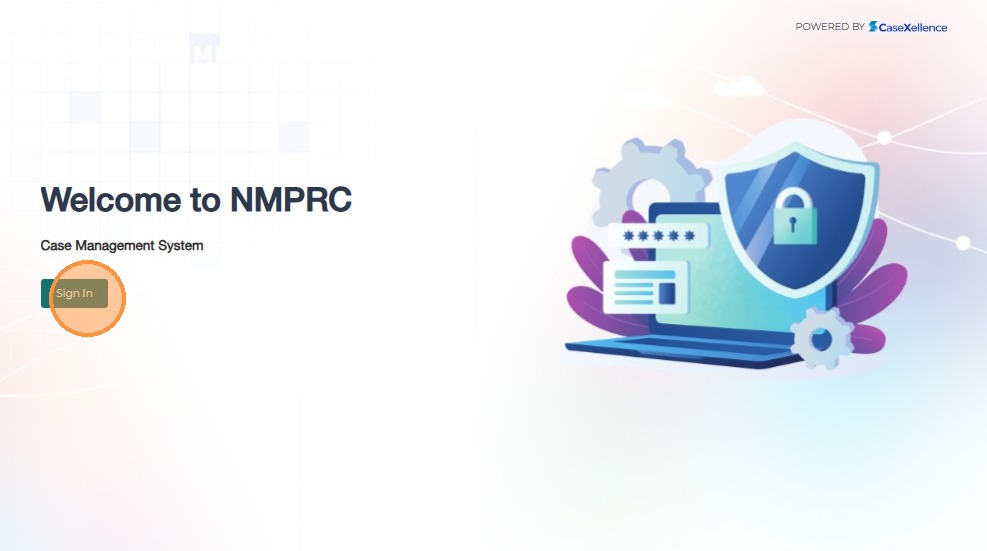
- Sign in
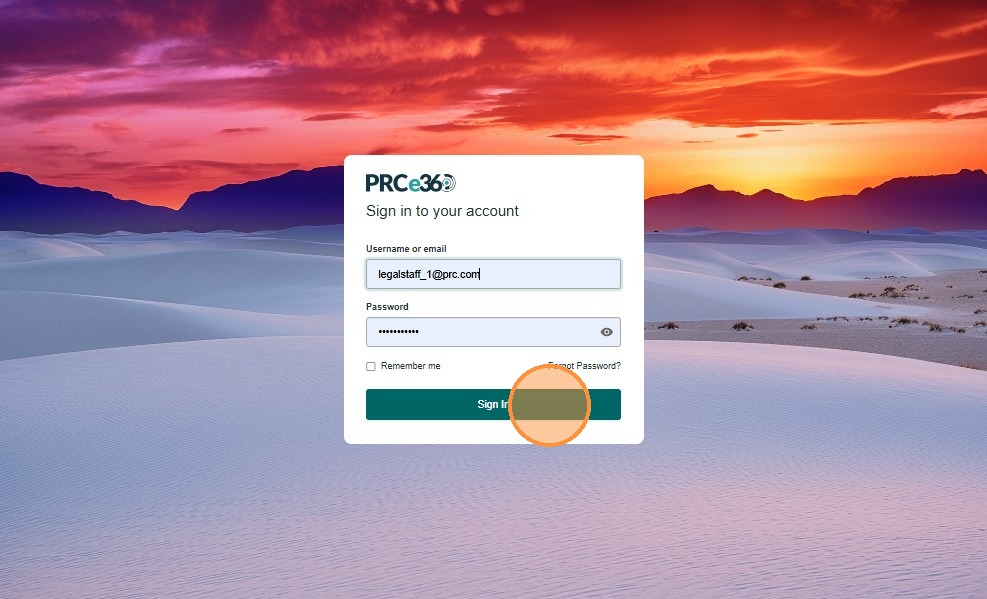
- Enter your user credentials to log in to the application.
- Click Sign In.
- After signing in, the Dashboard is displayed.
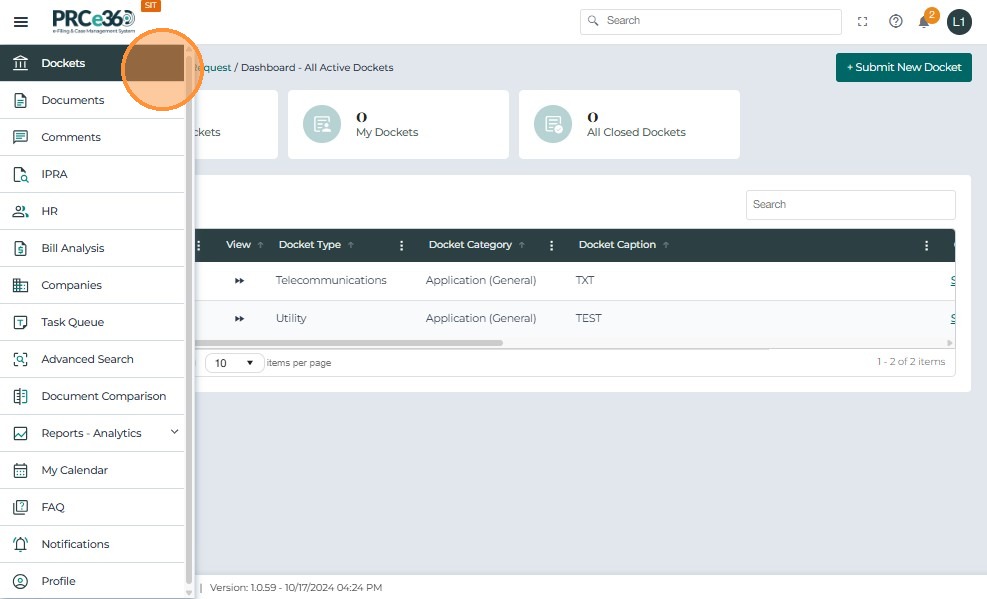
- In Dashboard → Cases, click the All Active Cases queue.
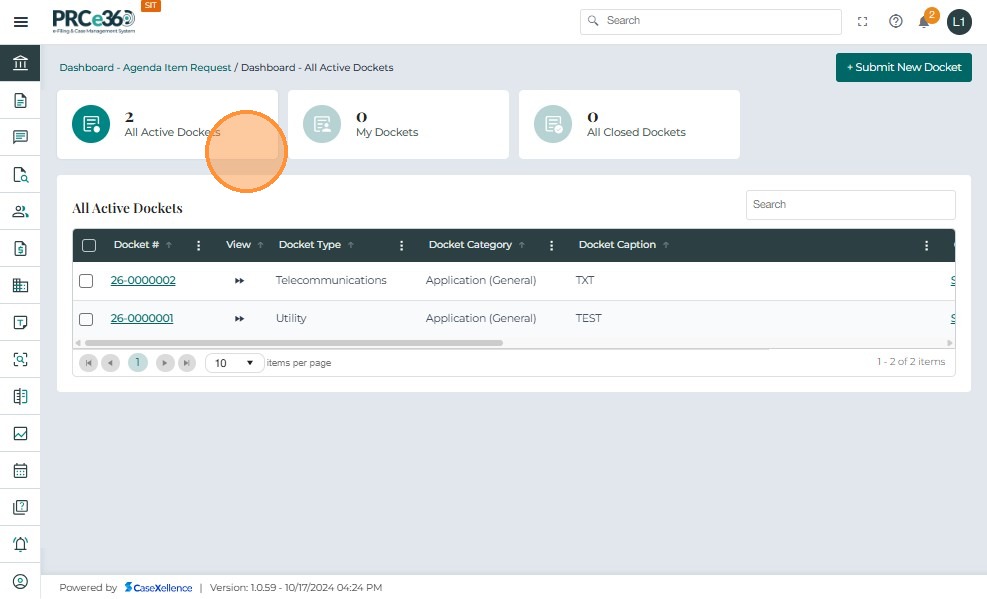
- Click the Docket Number for the appropriate case to open Case 360.
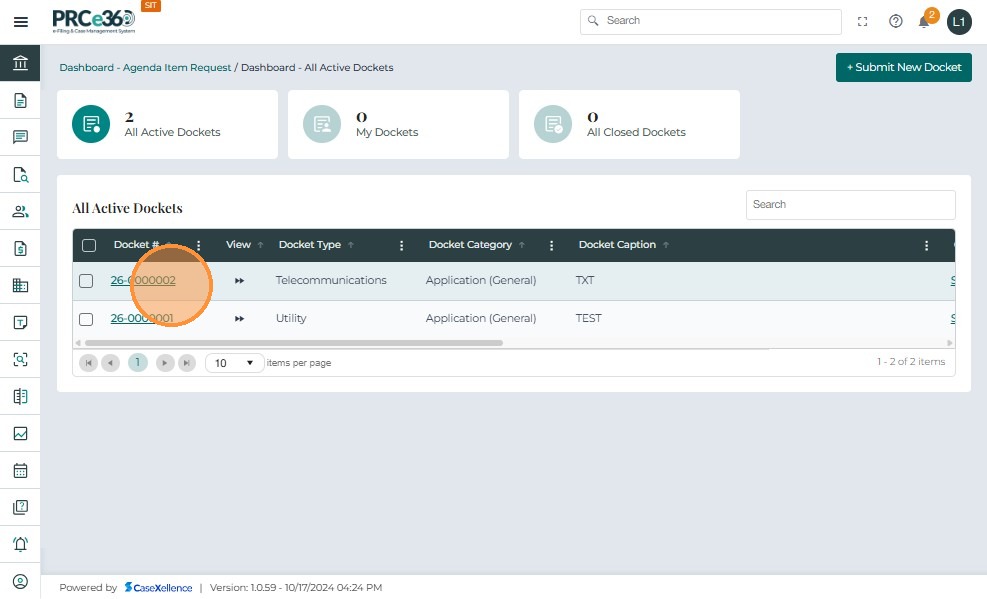
- In Case 360, click the Confidentiality Agreement button in the top-right corner.
- This button is visible for all divisions except OGC, Records, Commissioners, and Hearing Examiner Divisions.
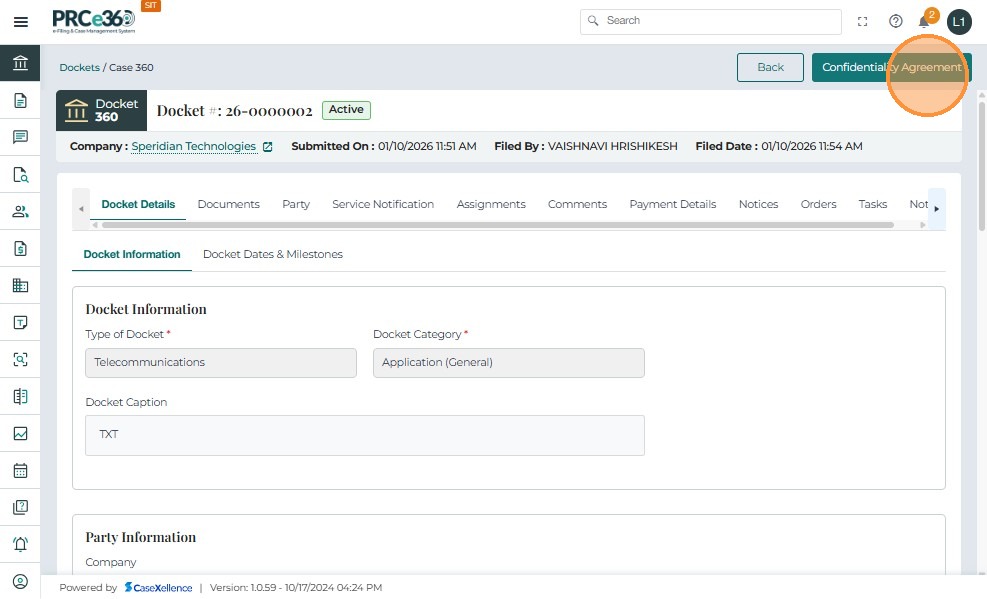
- A side panel opens displaying the Confidentiality Agreement request form.
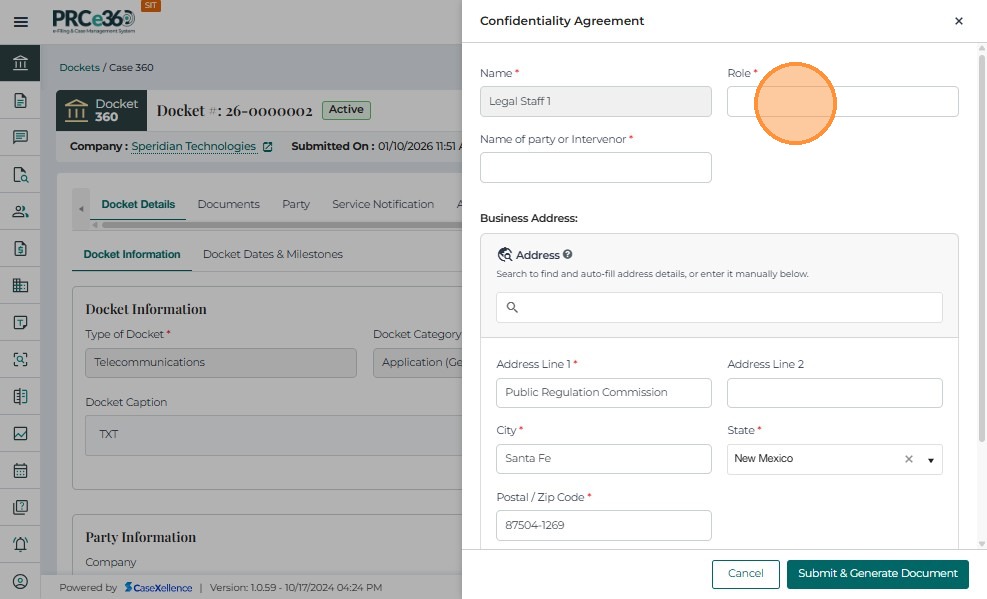
Complete the following fields:
- Role
- Name of Party or Intervenor
- Address (pre-populated and editable if necessary)
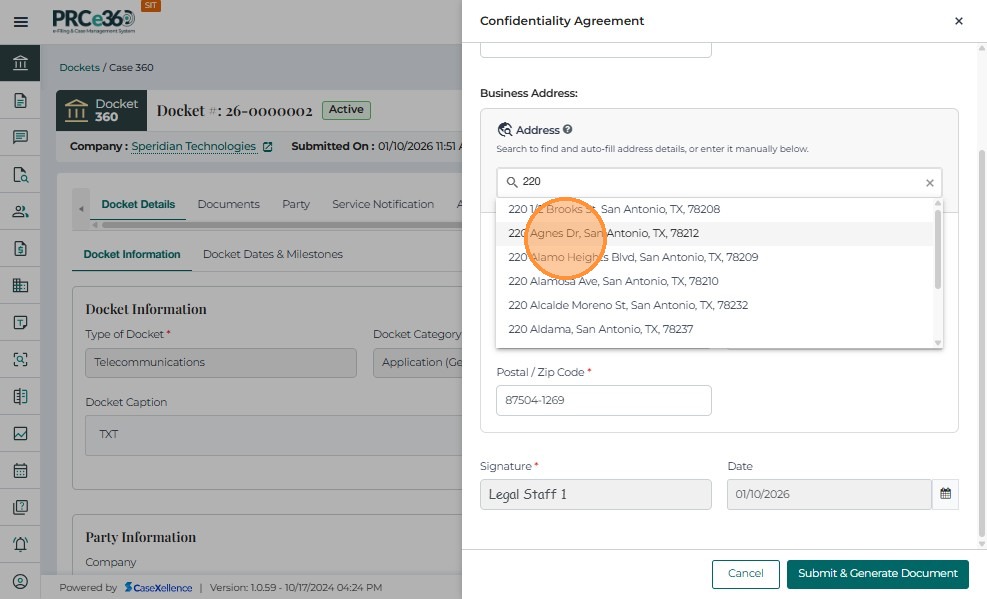
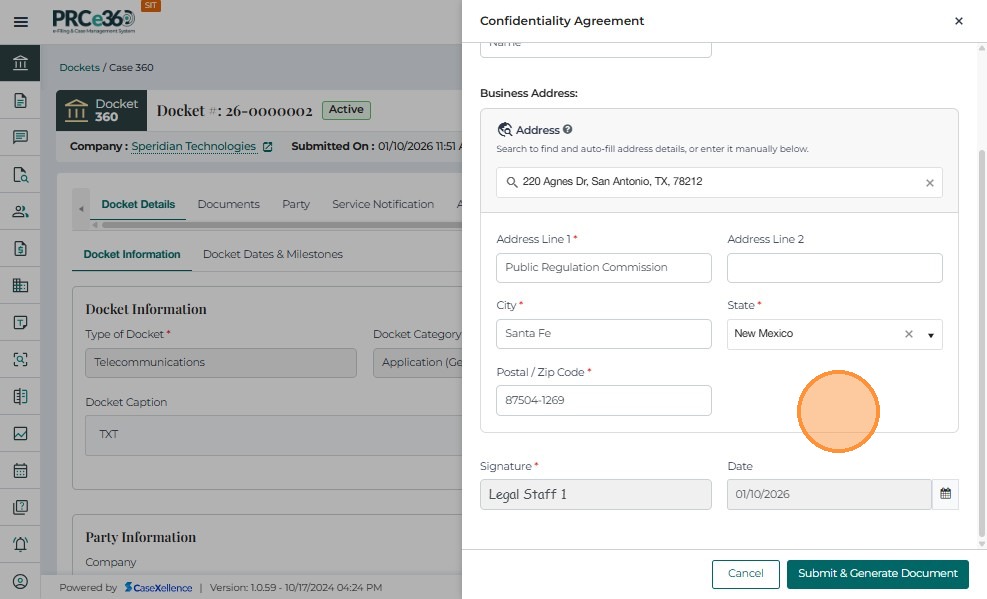
- Click Submit once all required details are entered.
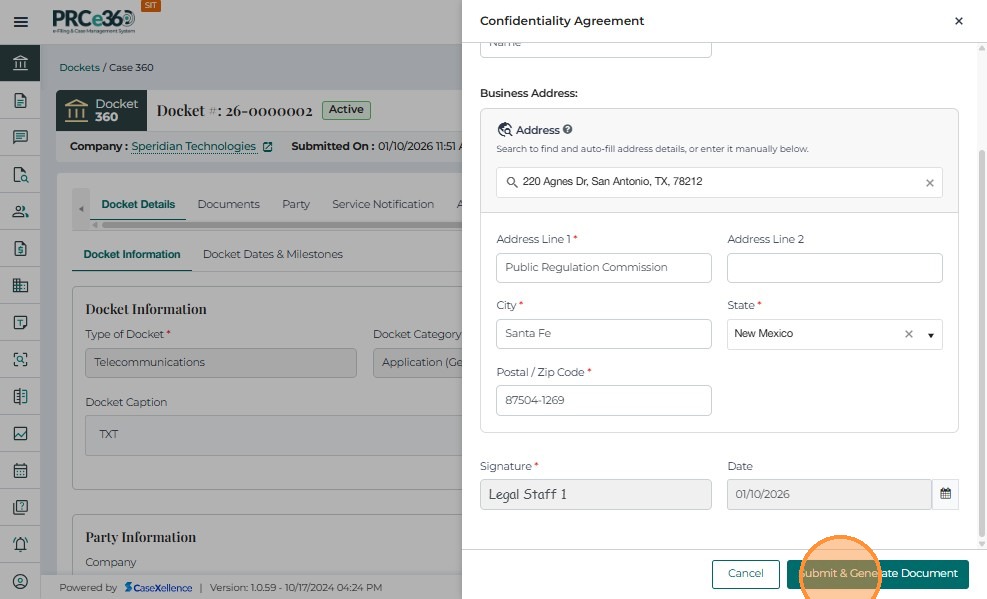
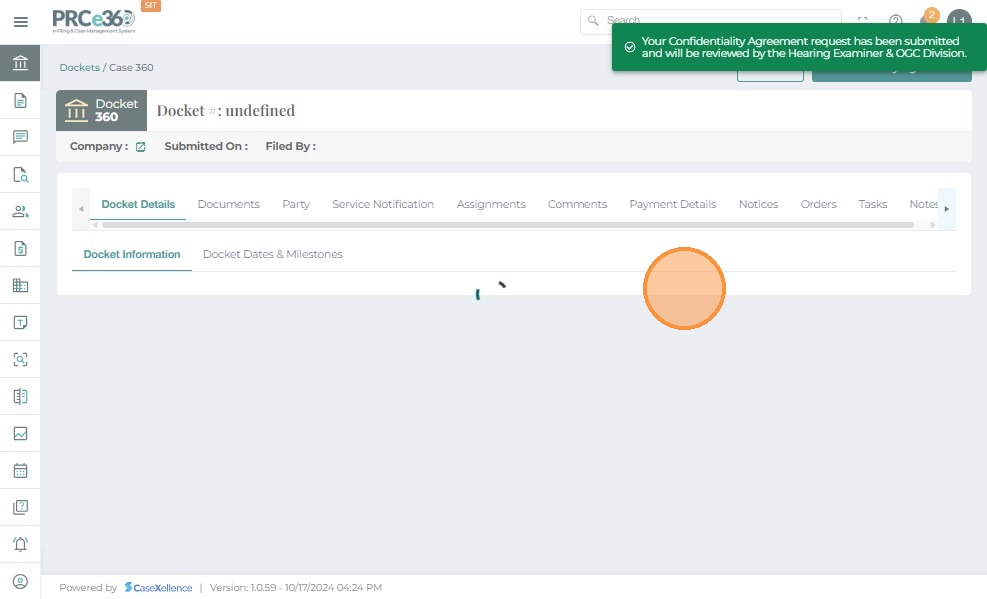
- After submission, the Confidentiality Agreement request is routed to the Hearing Examiner and OGC Divisions for review and decision.
Decision on Confidentiality Agreement
- Sign in
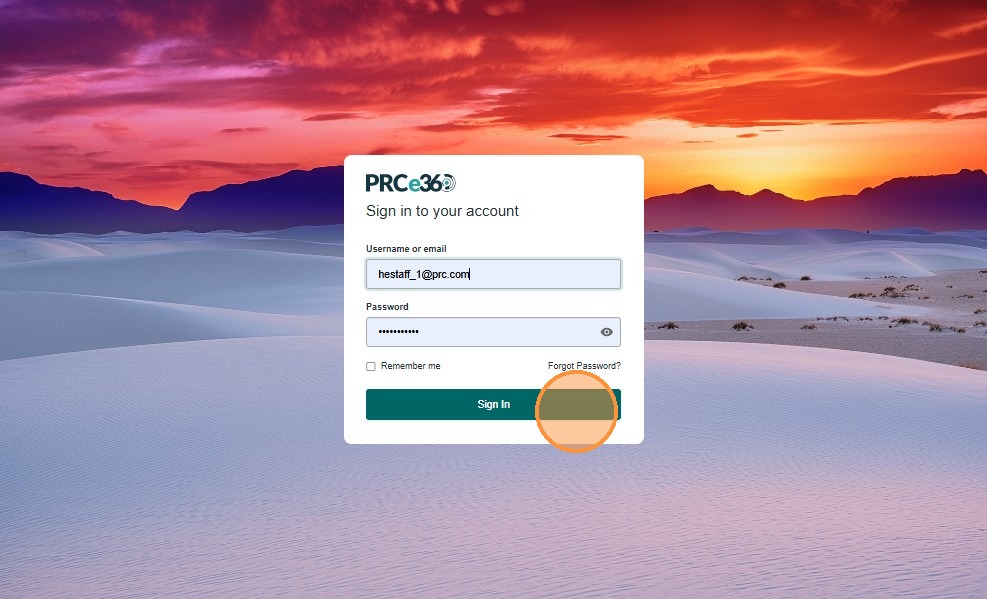
- Enter your user credentials to log in to the application.
- Click Sign In.
The following divisions and roles are authorized to accept or reject a Confidentiality Agreement request:
| Division | Roles | Functionality |
|---|---|---|
| Hearing Examiner Division | Hearing Examiner Supervisor, Staff, Law Clerk | Can Accept or Reject the confidentiality request. |
| OGC Division | OGC Supervisor, Staff, Paralegal | Can Accept or Reject the confidentiality request. |
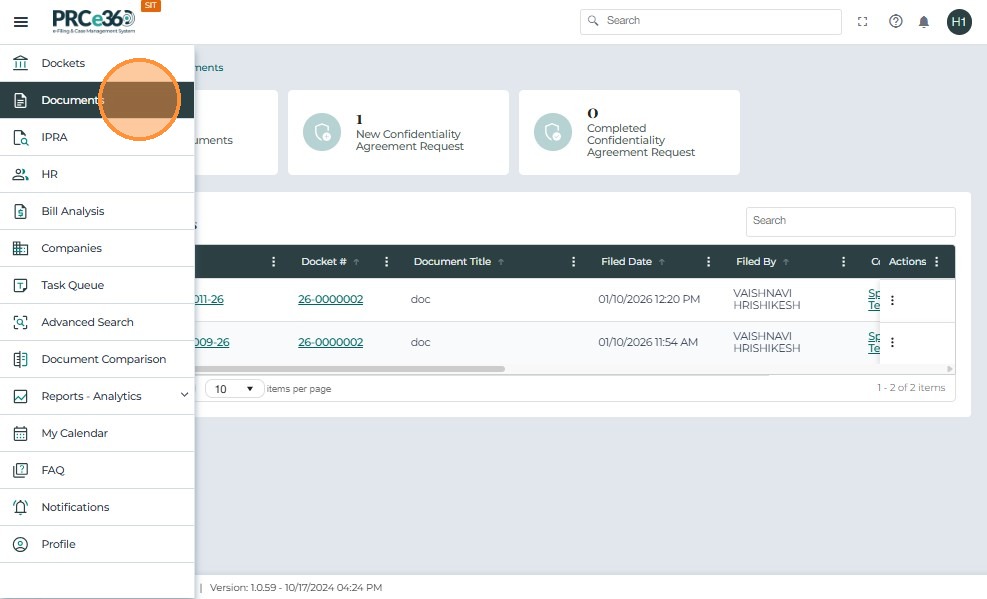
- Navigate to Dashboard → Documents.
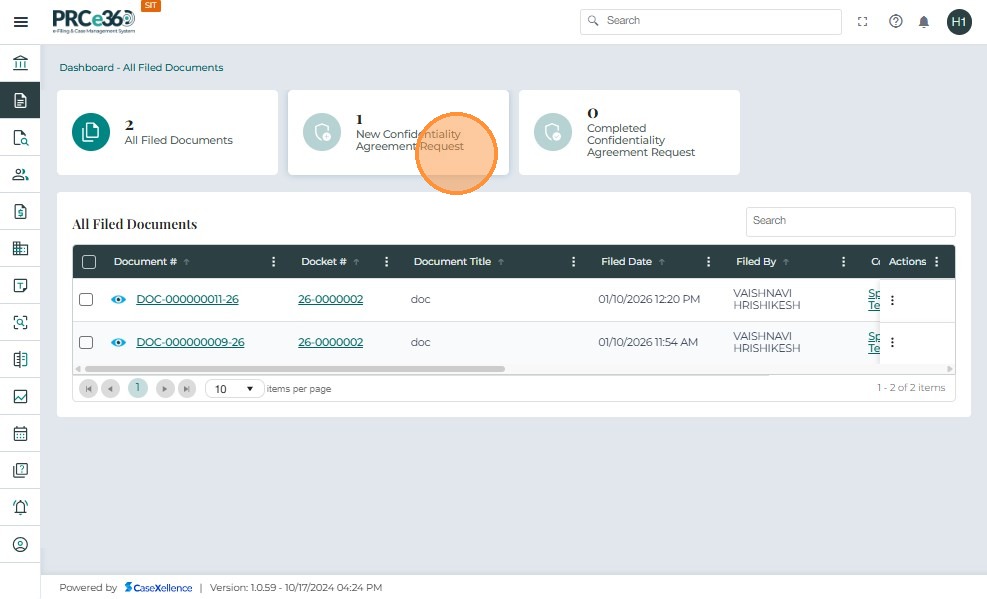
- In Dashboard → Documents, click the New Confidentiality Agreement Request queue.
-
The case associated with each request is displayed in the grid.
-
The Status for a new request is Pending, indicating that the Hearing Examiner or OGC Division must review the document.
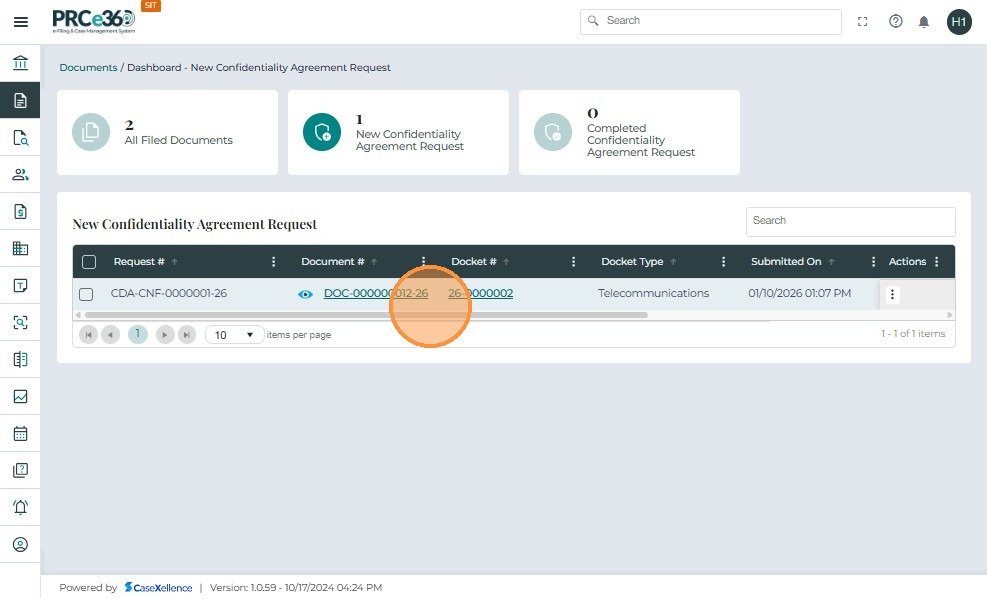
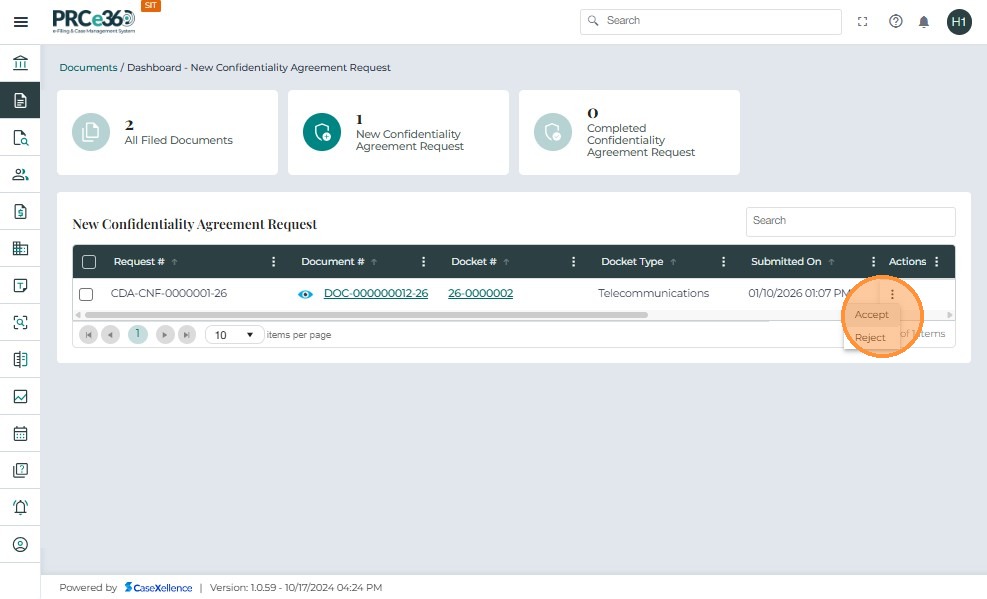
- Click the Actions button (three dots) for the appropriate request row.
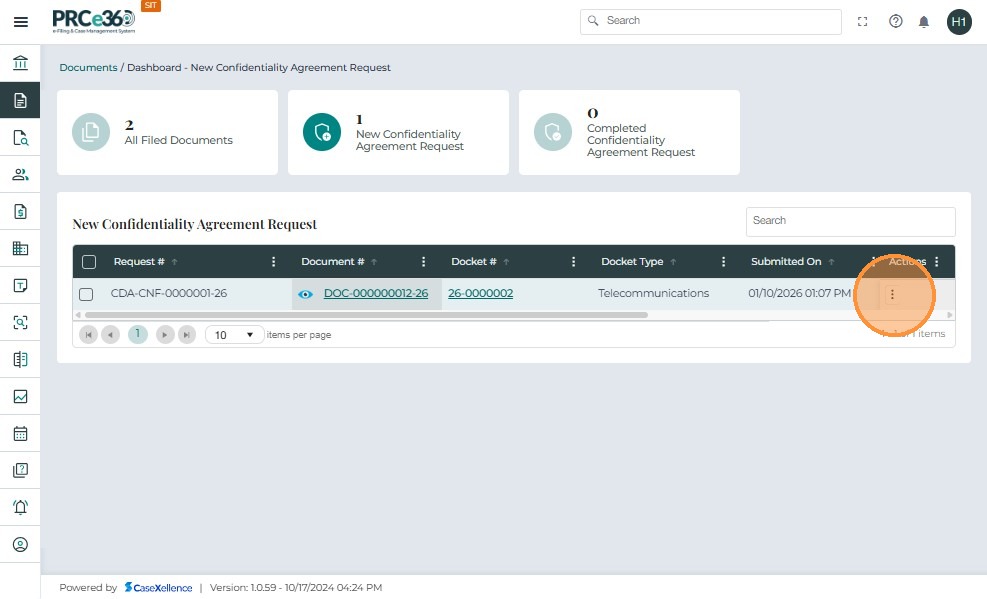
- The Actions menu provides options to Accept or Reject the request.
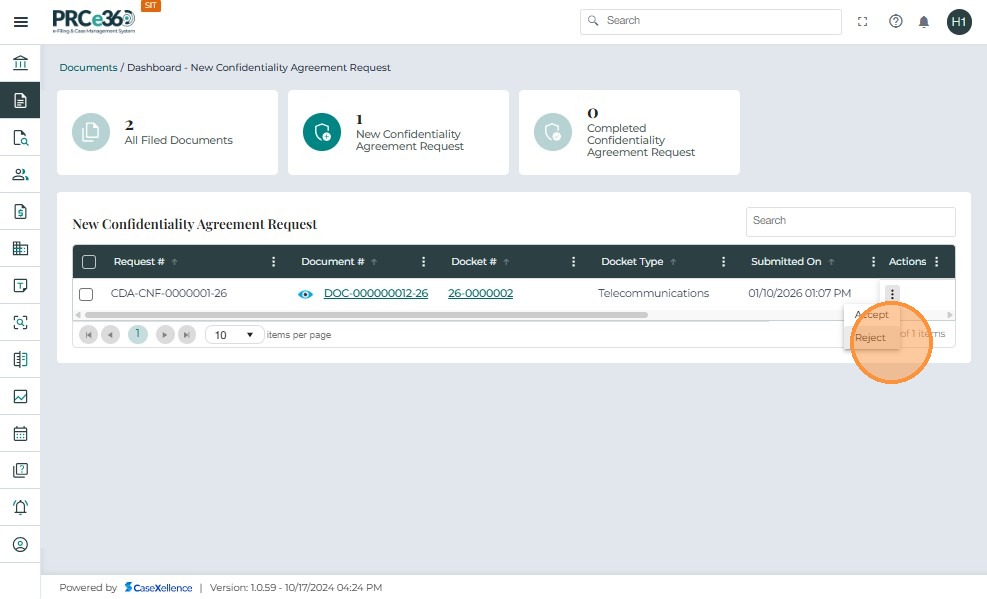
Reject the Request
- To reject the request, click Reject from the Actions menu.
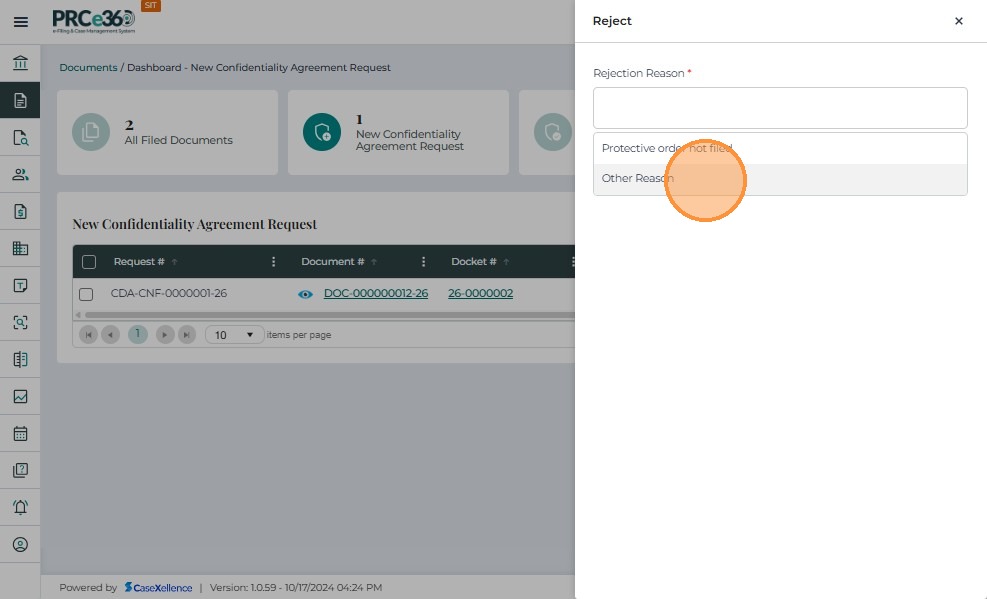
- A side panel opens to capture the Reason for Rejection.
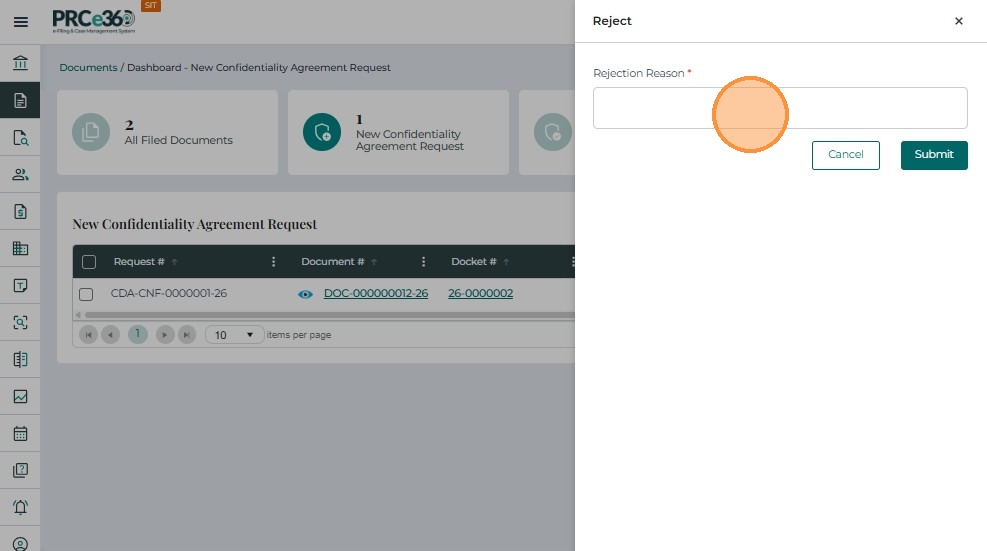
- Available rejection reasons include:
- Protective Order not filed
- Other Reason
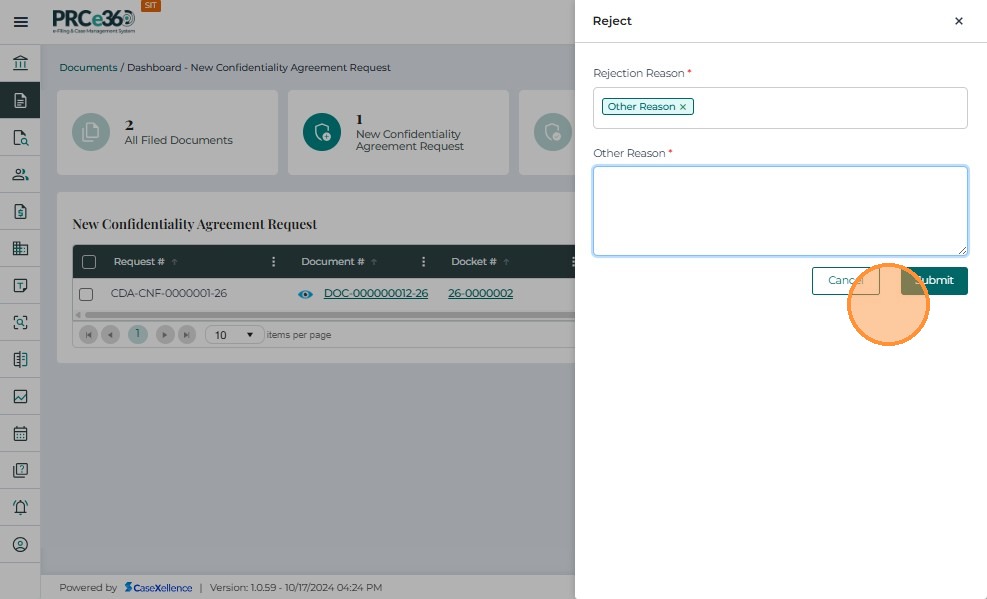
- If the reason is Other Reason:
- Select Other Reason.
- An additional text field appears.
- Enter the detailed explanation.
- Click Submit to complete the rejection.
Accept the Request
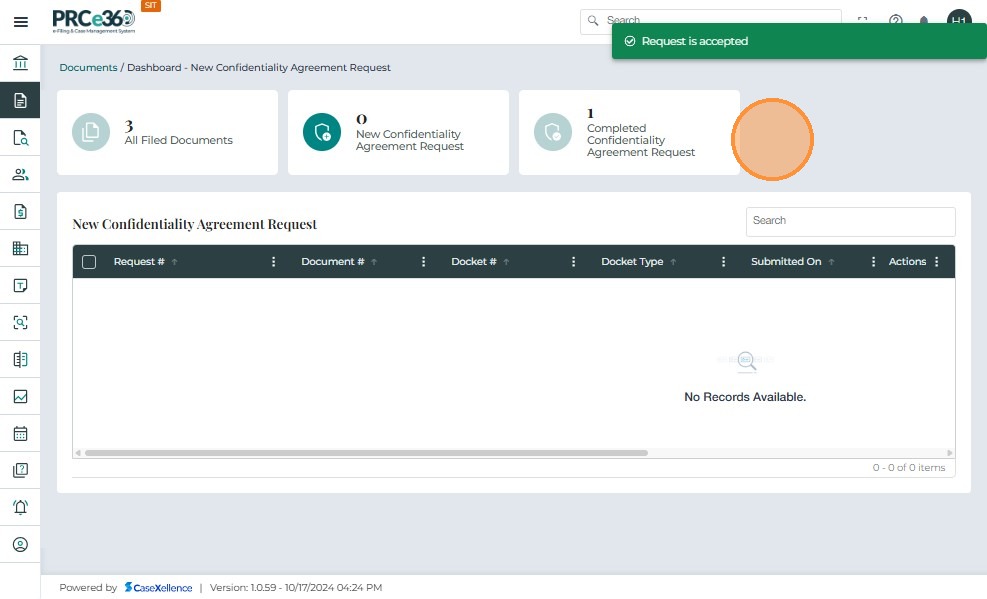
- To approve the request, click Accept from the Actions menu (three dots).
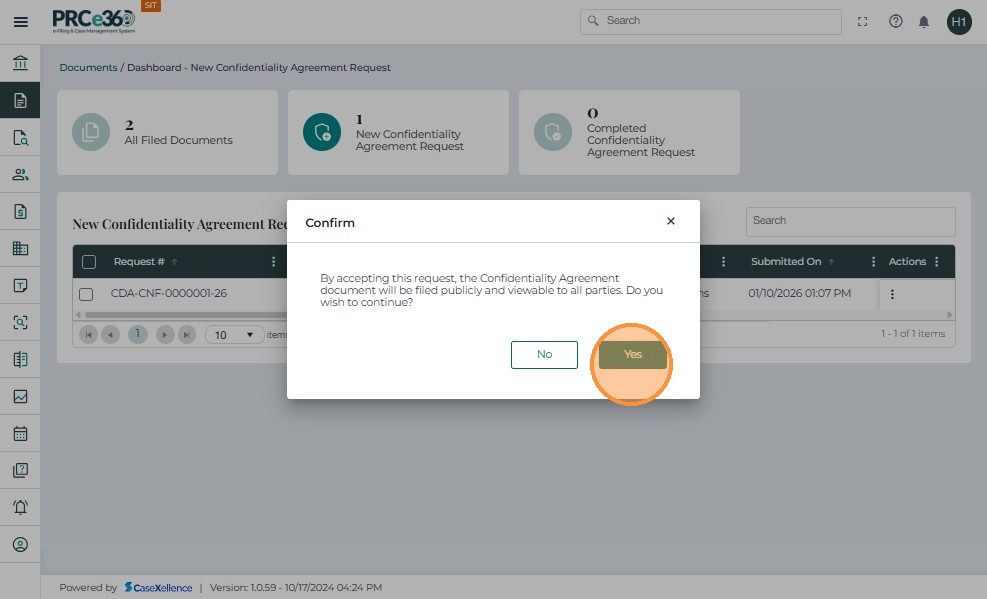
- A confirmation dialog appears, asking you to confirm acceptance of the request and to make the document public and viewable to all parties.
-
Once the request is accepted, the system will:
- Change the Document Audience to Public.
- Move the document to the Pleadings tab.
- Send an email notification to all parties listed on the Service Notification tab, informing them that a document has been filed on this docket.
-
After a decision (Accept or Reject) is made:
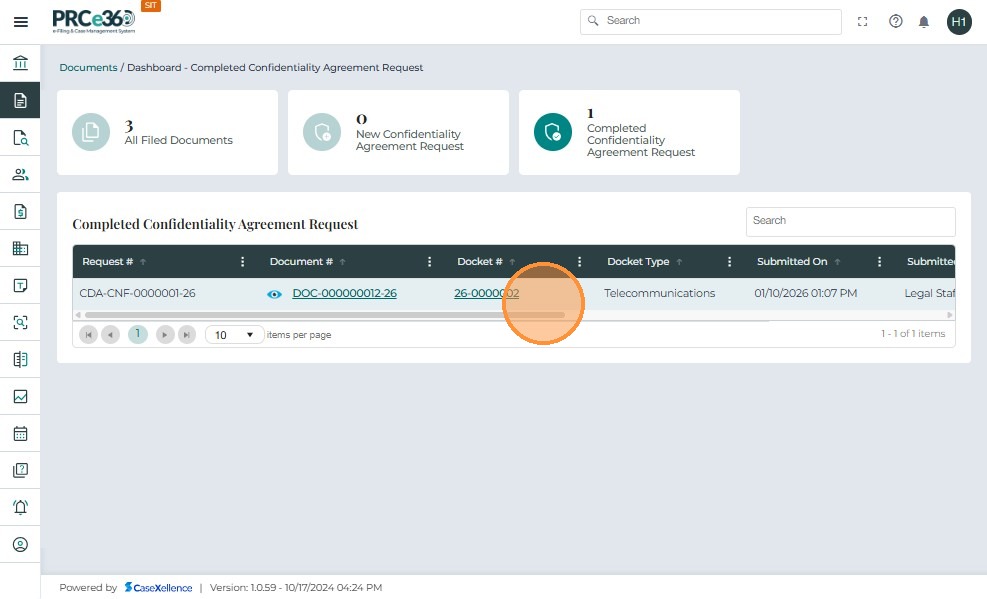
- The request moves from the New Confidentiality Agreement Request queue to the Completed Confidentiality Agreement Request queue.
- Completed requests remain listed in the grid for reference.
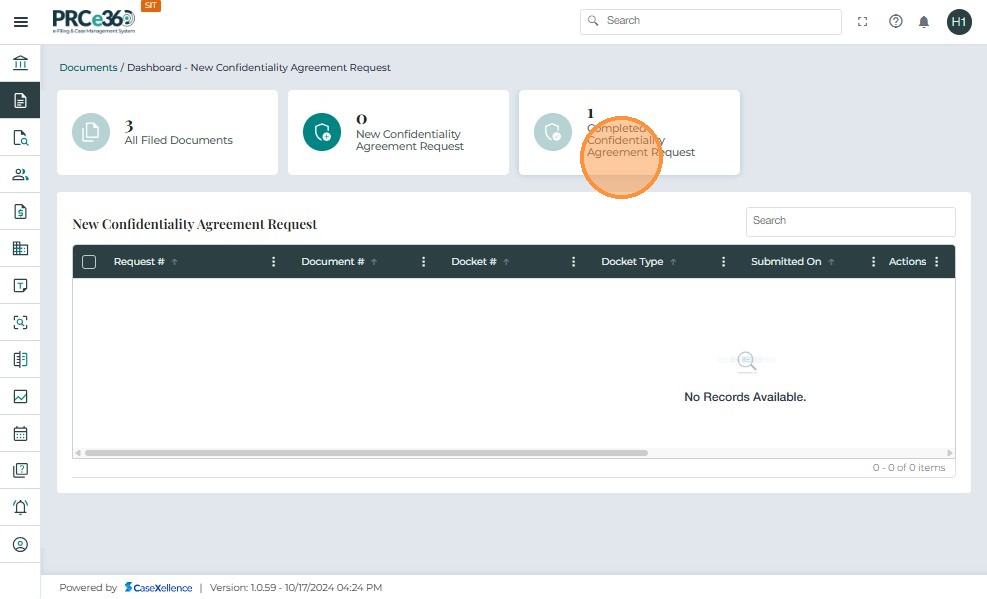
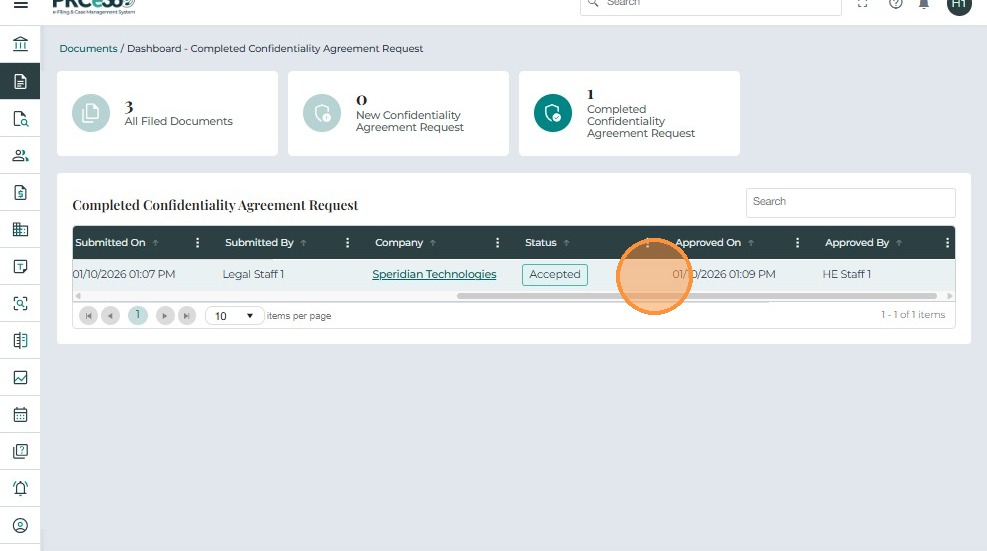
- In the Completed Confidentiality Agreement Request queue, the Status column displays Accepted or Rejected based on the decision for each request.